
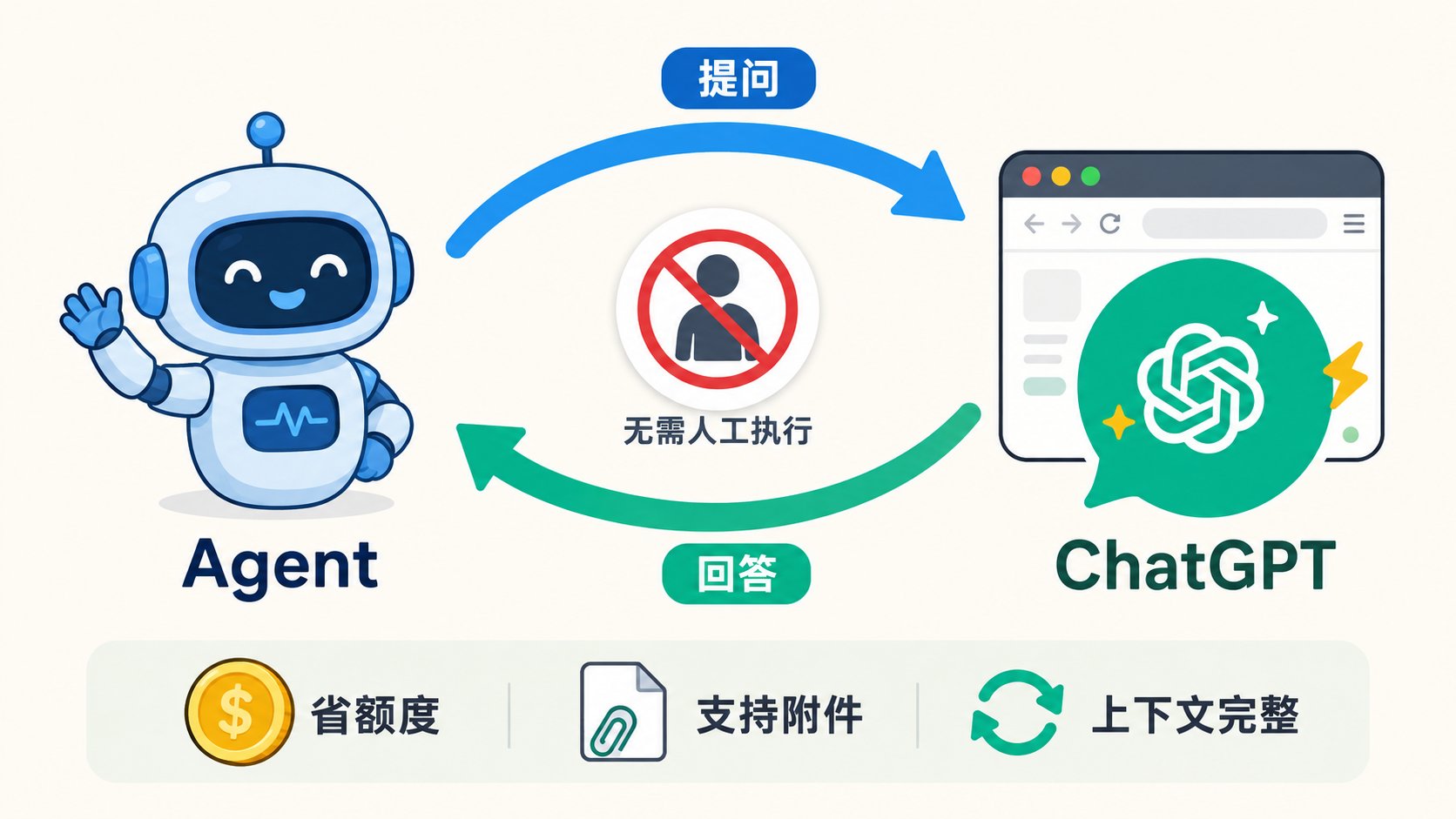
Here’s a quota-saving trick that lets any Agent “call” 5.6 Sol for free—perfect if you have your own paid ChatGPT account.
As we know, having conversations on the ChatGPT web interface doesn’t consume any Codex quota. We often ask ChatGPT on the web to handle web searches, deep thinking, and similar tasks, then forward its answers to an Agent. But this entire mechanical routine can be fully automated.
If your ChatGPT web account and Codex account are the same, you can simply use @ chat inside Codex to transfer context quickly. Unfortunately, my Codex account isn’t the same as my web account—the web side is just a Team account. So I wondered: is there a way to achieve the same thing quickly in this situation?
That’s when I found Oracle.
In ancient Greece and Rome, an oracle was a place or person that conveyed divine prophecies. Information beyond human reach, answered through it.
It uses browser automation to ask ChatGPT on the web for us and return structured replies. You can attach local files like code and screenshots as “attachments,” choose the model and reasoning effort (and yes, if you’re feeling fancy, you can even ask 5.6 Pro directly).
Install the project’s CLI, pair it with a Skill, and you can teach any Agent to use 5.6 Sol as a callable tool—giving it access to your context, web browsing, and other external information.
Setup
Note: This kind of automation carries a potential risk of account suspension. If that’s a real concern for you, I’d advise against it.
On macOS, you can install it with a single command:
1 | brew install steipete/tap/oracle |
Or install via NPM (works everywhere):
1 | npm install -g @steipete/oracle |
Have your Agent read https://github.com/steipete/oracle and install the accompanying Skill.
From there, you can customize the official Skill to fit your preferences. Here’s how I use it:
First, you’ll need Chrome with your ChatGPT account logged in.
Two Ways to Save Conversations
Since this simulates conversations on the web interface, I recommend one of two ways to save them. The first is Temporary Chat mode, which starts a fresh temp conversation every time. The upside: it never interferes with your own usage, and chats are burn-after-reading. The downside: you can’t retrieve past conversations or continue them.
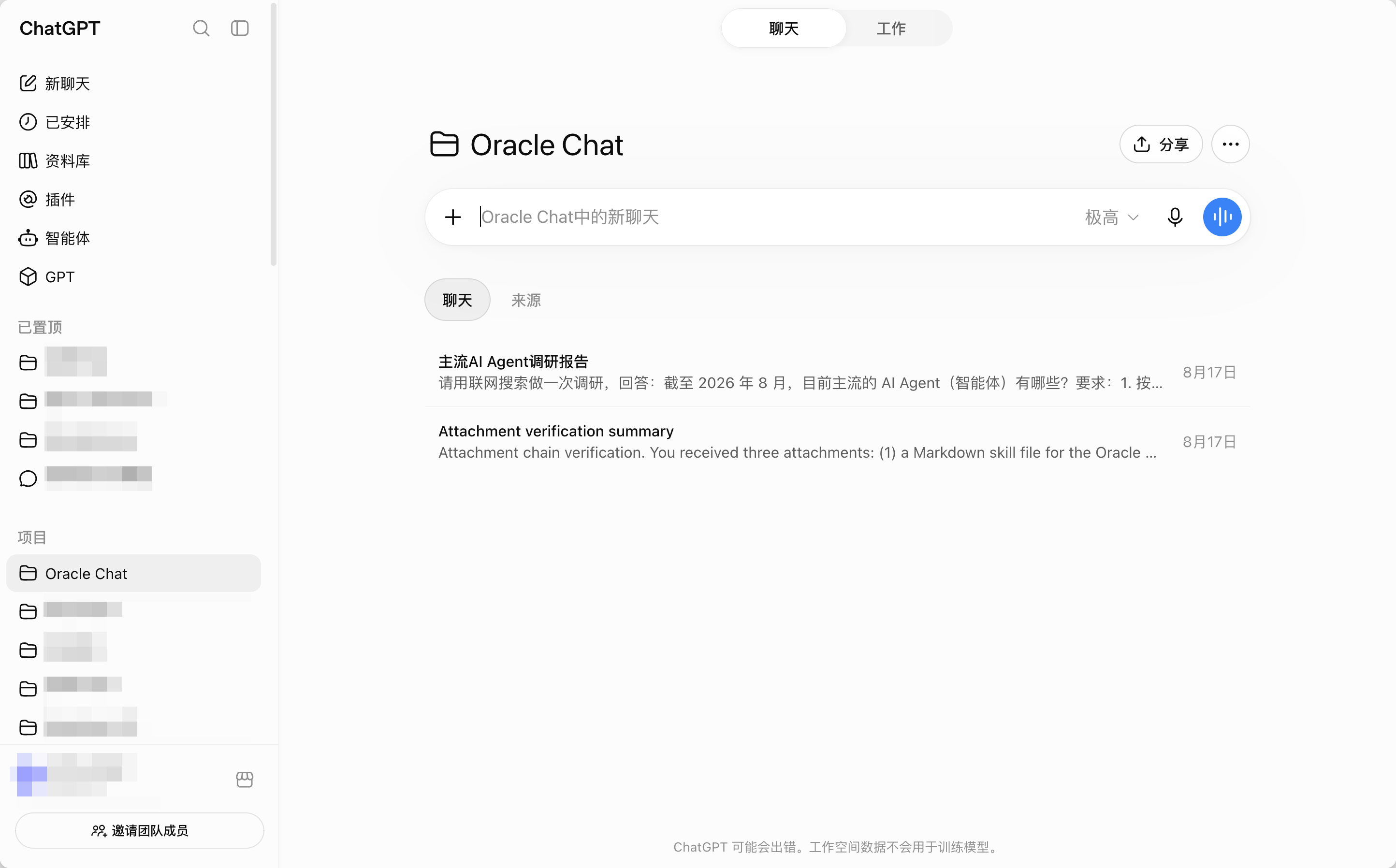
The second—and my recommended approach—is to create a dedicated Project for your Agent. Make a standalone Project in ChatGPT just for it, then give your Agent the Project link (something like https://chatgpt.com/g/id/project). This keeps all Agent-initiated questions in one place, and you can open it up yourself whenever you need to check.
Configuring config.json
Next, have your Agent configure ~/.oracle/config.json. Below is a generic version of my config with personal info removed—feel free to use it as a reference:
1 | { |
A few notes on the optional fields:
chatgptUrl: If you’re usingTemporary Chatmode, change this tohttps://chatgpt.com/?temporary-chat=true.chromePath: Point this at awrapperthat injects--proxy-server=, for those who need a proxy to reach ChatGPT.hideWindow: true: Oracle hides the Chrome window automatically after launching, so it won’t interrupt your work.archiveConversations: "never": Don’t archive conversations, so irrelevant chats don’t pile up in your Project.
What If You Don’t Have a Global Proxy?
If your network can’t reach ChatGPT (e.g., you’re in China without a global proxy), don’t give up on this setup. The idea is to write a Chrome wrapper script that injects a local proxy whenever Oracle launches Chrome.
My ~/.oracle/oracle-chrome script does roughly three things: first, it strips out any --proxy-server argument passed by Oracle (to avoid conflicting with the one we’re injecting), then it appends --proxy-server=http://127.0.0.1:7890 to the launch args, and finally it uses exec to start the real Chrome.
Then in config.json, point chromePath at this script instead of the Chrome binary:
1 | { |
This way, every time Oracle launches Chrome, it automatically picks up the local proxy, and the ChatGPT web interface loads normally—no need to manually enable a global proxy.
Next, have your Agent add a timeout to the Skill. I set mine to 20 minutes, which should be plenty for most tasks.
Finally, have your Agent run a quick test to confirm it works. If it does, you’re seamlessly plugged into your workflow.
Real-World Test
Here’s an example from my own setup: I use a cheap model like Deepseek V4 Flash in Oh My Pi, and it successfully called out to the external GPT 5.6 Sol for help—took about 5 minutes.
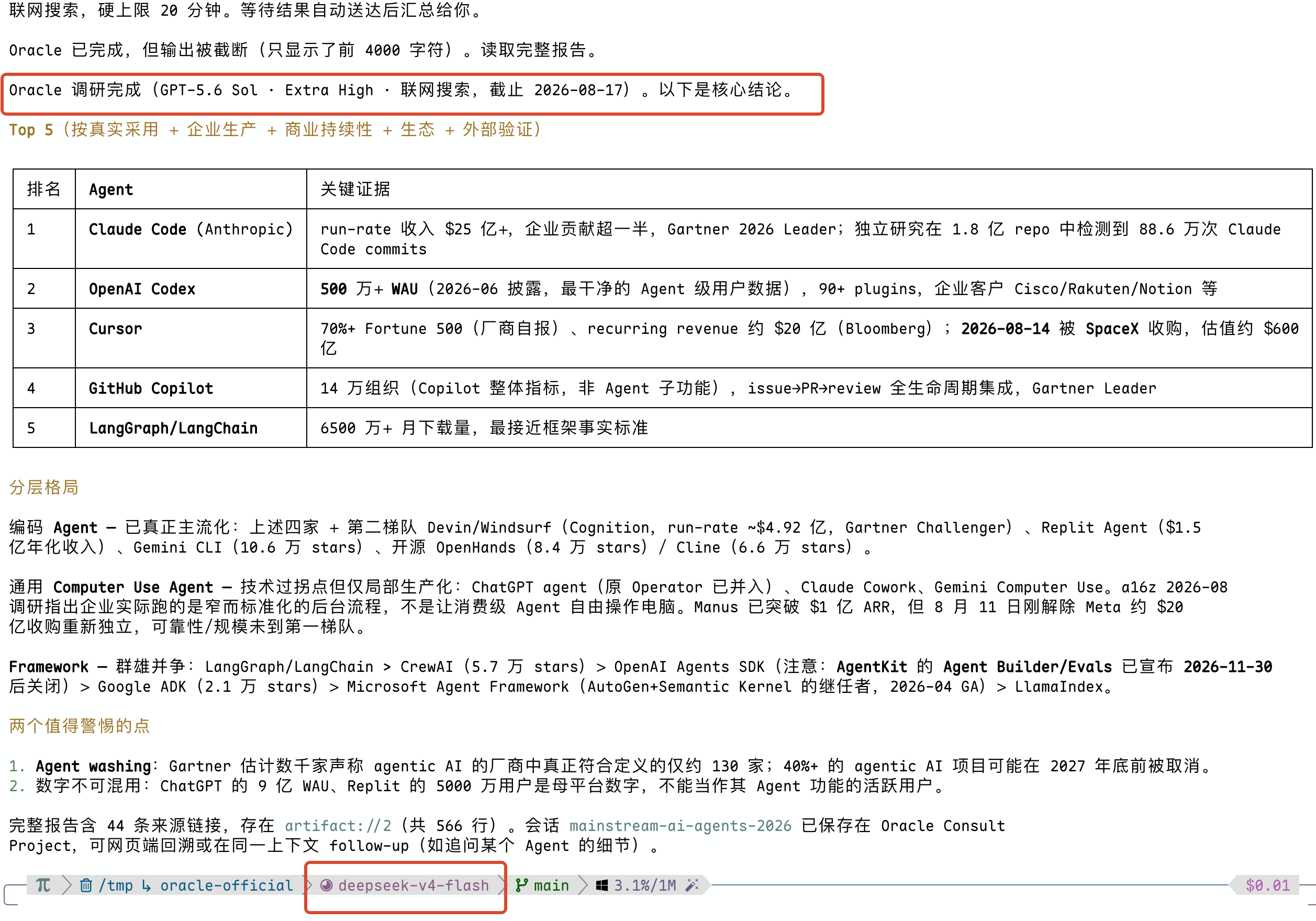
At this point, we’ve effectively built a closed-loop workflow: an external high-performance model guides, while a cheap model drives. Once the Skill and CLI are set up, no human ever needs to be the content courier again. In the age of Agents, this is exactly the mindset we should adopt—freeing human attention from tedious, repetitive hand-off work and redirecting it toward more valuable pursuits.